

This tutorial shows you how to use the Apollo Kotlin library to call the fulfillmenttools GraphQL API using queries or mutations.
Prerequisites
- Java/JVM (e.g. by using SDKMAN)
- Gradle
- IDE (optional)
- IntelliJ with Apollo Graphql Plugin
- Access to the fulfillmenttools GraphQL API (bearer token)
You can find the complete source code of this tutorial in the following GitHub repository:
https://github.com/SimonScholz/tutorials/tree/master/kotlin-apollo
Init project
First, we need to create a new Gradle project:
mkdir kotlin-apollo

cd kotlin-apollo

gradle init \
    --type kotlin-application \
    --dsl kotlin \
    --test-framework junit-jupiter \
    --project-name kotlin-apollo \
    --package dev.simonscholz \
    --no-split-project \
    --no-incubating \
    --java-version 25
Please choose whatever Java version you have installed on your machine.
Add Apollo Kotlin dependencies
Next, we need to add the Apollo Kotlin dependencies to our build.gradle.kts file:
plugins {
    // Other plugins...

    id("com.apollographql.apollo") version "5.0.0"
}

dependencies {
    // Other dependencies...

    implementation("com.apollographql.apollo:apollo-runtime:5.0.0")
    implementation("io.github.cdimascio:dotenv-kotlin:6.5.1")
}

apollo {
    service("service") {
        packageName.set("dev.simonscholz")
        introspection {
            schemaFile.set(file("src/main/graphql/schema.graphqls"))
        }
    }
}
Note that the apollo block will ensure that the generated code is placed in the dev.simonscholz package and be part of the source set of the project.
Download GraphQL schema
The latest apollo-kotlin version 5.0.0 deprecated the downloadApolloSchema Gradle task and recommends using the apollo-kotlin-cli.
It can be installed like this:
curl -sS https://raw.githubusercontent.com/apollographql/apollo-kotlin-cli/main/install.sh | sh
Once it is installed you can download the schema like this:
apollo-kotlin-cli download-schema --endpoint=https://{projectId}.graphql.fulfillmenttools.com/graphql \
  --schema=app/src/main/graphql/schema.graphqls \
  --headers='{"Authorization": "Bearer {token}"}'
Create GraphQL query
You can play around with the GraphQL API using the GraphiQL UI (https://{projectId}.graphql.fulfillmenttools.com/graphiql) to create your query.
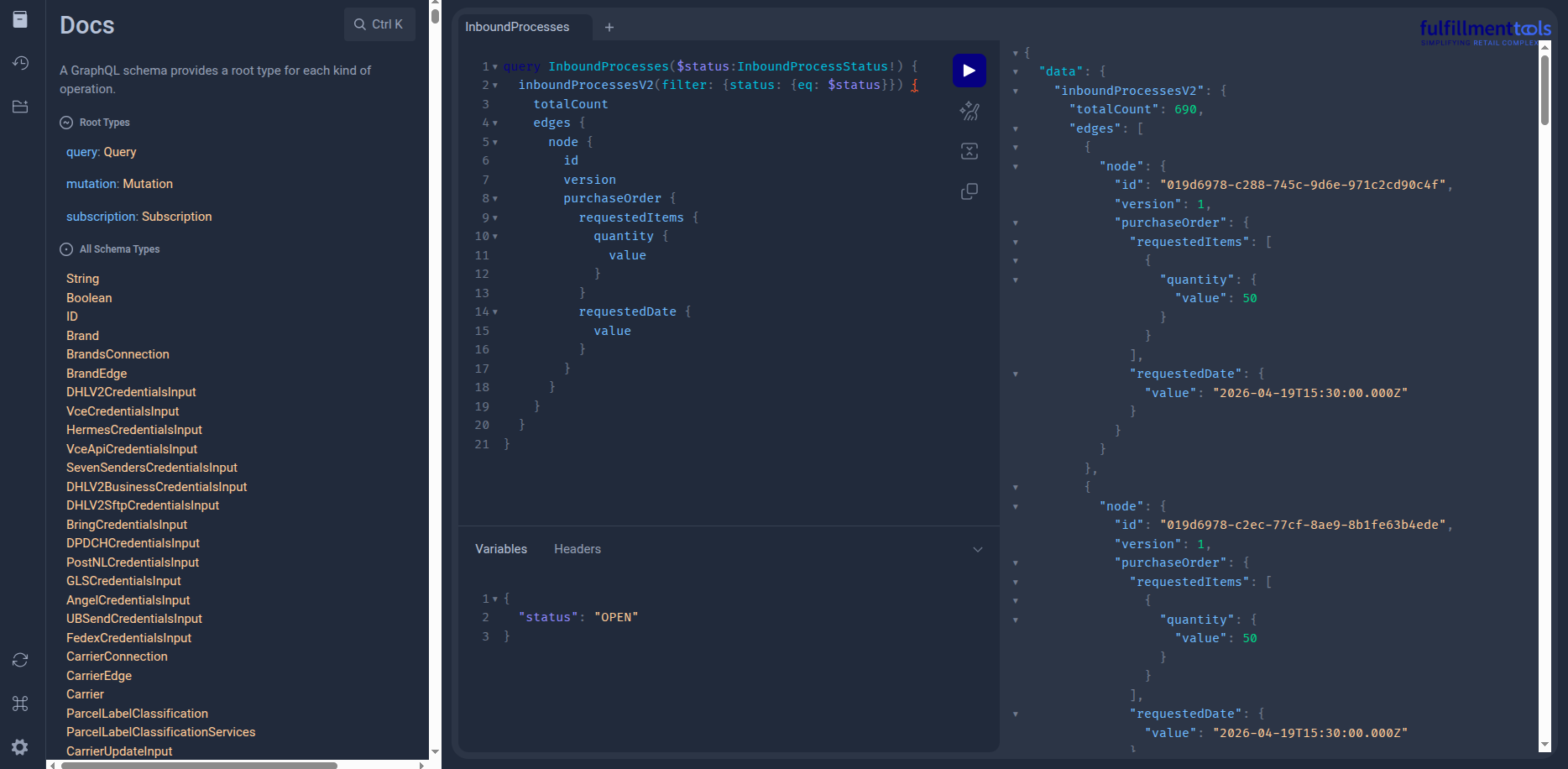
The screenshot above shows the GraphiQL editor where you can write and test your GraphQL queries.
Once you have your query, you can create a .graphql file in your app/src/main/graphql directory of your project and paste your query there.
For example, if you want to retrieve a list of open inbound processes, you can create a file named InboundProcesses.graphql with the following content:
query InboundProcesses($status:InboundProcessStatus!) {
  inboundProcessesV2(filter: {status: {eq: $status}}) {
    totalCount
    edges {
      node {
        id
        version
        purchaseOrder {
          requestedItems {
            quantity {
              value
            }
          }
          requestedDate {
            value
          }
        }
      }
    }
  }
}
Generate code
Now that we have our query and schema in the app/src/main/graphql directory, we can generate the necessary code to call the API.
./gradlew generateApolloSources
Troubleshooting
When generating the code you might encounter the following error:
Execution failed for task ':app:generateServiceApolloSources'.
> A failure occurred while executing com.apollographql.apollo.gradle.internal.GenerateSources
   > e: /home/simon/git/simon/tutorials/kotlin-apollo/app/src/main/graphql/schema.graphqls: (33402, 1): Schemas that include nullability directives must opt-in a default CatchTo. Use `extend schema @catchByDefault(to: $to)`
     ----------------------------------------------------
     [33401]:
     [33402]:schema {
     [33403]:  query: Query
     ----------------------------------------------------
In case this error occurs you can modify your app/src/main/graphql/schema.graphqls file and remove the following line:
directive @catch (to: CatchTo! = RESULT, "Indicates how clients should handle errors on a given position.\n\n The `levels` argument indicates where to catch errors in case of lists:\n\n ```graphql\n {\n user {\n # friends catches errors\n friends @catch { name } # same as @catch(levels: [0])\n\n # every friends[k] catches errors\n friends @catch(levels: [0]) { name }\n\n # friends as well as every friends[k] catches errors\n friends @catch(levels: [0, 1]) { name }\n }\n }\n ```\n\n `levels` are zero indexed.\n Passing a negative level or a level greater than the list dimension is an error.\n\n See `CatchTo` for more details." levels: [Int!]! = [0]) on FIELD
Now run ./gradlew generateApolloSources again and the code should be generated successfully.
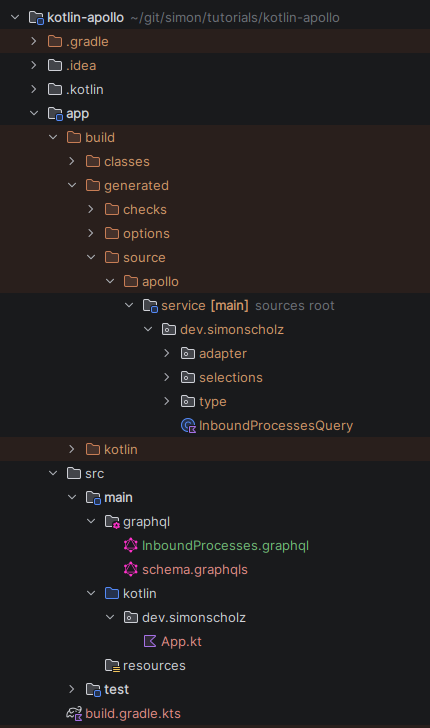
Project structure
After generating the code, your project structure should now look like this:
Call the GraphQL API
The gradle init task created a App.kt file in the app/src/main/kotlin/dev/simonscholz directory. You can replace the content of this file with the following code to call the GraphQL API:
package dev.simonscholz

import com.apollographql.apollo.ApolloClient

suspend fun main() {
    val token = "your_bearer_token_here"

    val apolloClient =
        ApolloClient
            .Builder()
            .serverUrl("https://{projectId}.graphql.fulfillmenttools.com/graphql")
            .addHttpHeader("Authorization", "Bearer $token")
            .build()

    val response =
        apolloClient
            .query(InboundProcessesQuery(status = InboundProcessStatus.OPEN))
            .execute()

    if (response.errors.isNullOrEmpty() && response.exception == null) {
        println("inboundProcessesV2.totalCount=${response.data?.inboundProcessesV2?.pageInfo}")
        println("inboundProcessesV2.edges=${response.data?.inboundProcessesV2?.edges}")
    } else {
        println("Errors: ${response.errors}")
        println("Exception: ${response.exception}")
    }
}
Make sure to replace your_bearer_token_here with your actual bearer token and {projectId} with your actual project ID.
Run the application
Finally, you can run the application to see the results:
./gradlew run
You should see the total count of open inbound processes and their details printed in the console.
Query InboundProcesses using pagination
In fulfillmenttools you may only fetch 100 edges at once and in case you want to query more the pageInfo must also be queried:
query InboundProcesses($status:InboundProcessStatus!, $after: String) {
    inboundProcessesV2(filter: {status: {eq: $status}}, first: 100, after: $after) {
        pageInfo {
            hasPreviousPage
            hasNextPage
            startCursor
            endCursor
        }
        edges {
            node {
                id
                version
                facilityRef
                purchaseOrder {
                    requestedItems {
                        quantity {
                            value
                        }
                    }
                    requestedDate {
                        value
                    }
                }
            }
        }
    }
}
Once you modified the InboundProcesses.graphql file do not forget to run ./gradlew generateApolloSources again.
The code can then use hasNextPage and endCursor to navigate the edges:
package dev.simonscholz

import com.apollographql.apollo.ApolloClient
import com.apollographql.apollo.api.Optional
import dev.simonscholz.InboundProcessesQuery.InboundProcessesV2
import dev.simonscholz.type.InboundProcessStatus
import kotlinx.coroutines.flow.Flow
import kotlinx.coroutines.flow.flow
import kotlinx.coroutines.flow.toList

fun fetchAllInboundProcesses(
    apolloClient: ApolloClient,
    status: InboundProcessStatus,
    after: Optional<String?> = Optional.absent(),
): Flow<InboundProcessesV2> =
    flow {
        var nextCursor: Optional<String?> = after
        var hasNextPage = true
        while (hasNextPage) {
            val response =
                apolloClient
                    .query(InboundProcessesQuery(status = status, after = nextCursor))
                    .execute()
            check(response.errors.isNullOrEmpty()) {
                "GraphQL errors: ${response.errors}"
            }

            response.exception?.let { throw it }

            val inboundProcesses =
                requireNotNull(response.data?.inboundProcessesV2) {
                    "Missing inboundProcessesV2 in response"
                }

            emit(inboundProcesses)

            val pageInfo = inboundProcesses.pageInfo
            hasNextPage = pageInfo.hasNextPage == true
            nextCursor = if (hasNextPage) Optional.presentIfNotNull(pageInfo.endCursor) else Optional.absent()
        }
    }

suspend fun main() {
    val token = "your_bearer_token_here"

    val apolloClient =
        ApolloClient
            .Builder()
            .serverUrl("https://{projectId}.graphql.fulfillmenttools.com/graphql")
            .addHttpHeader("Authorization", "Bearer $token")
            .build()

    val inboundProcessesV2 =
        fetchAllInboundProcesses(
            apolloClient,
            InboundProcessStatus.OPEN,
        ).toList()

    println("Total pages fetched: ${inboundProcessesV2.size}")

    val allEdges = inboundProcessesV2.flatMap { ib: InboundProcessesV2 -> ib.edges!! }

    println("Total edges fetched: ${allEdges.size}")

    allEdges.forEach { edge ->
        // your logic here
    }
}
When using a Flow<T> like above the responses can be processed upon retrieval.
But please note the .toList() when invoking the fetchAllInboundProcessesfunction in the sample above for sake of simplicity.
Delete stocks by using a graphql mutation
Besides querying data using graghql you can also mutate it. So let's first query certain stocks and then delete them.
The fetchStock.graphql can be used to fetch stock entries by tenantArticleId and facilityRef.
query fetchStocks($tenantArticleId: String!, $facilityRef: String!) {
  stocksV3(
    filter: {tenantArticleId: {eq: $tenantArticleId}, facilityRef: {eq: $facilityRef}}
  ) {
    totalCount
    edges {
      node {
        id
        value
        reserved
        available
        version
      }
    }
  }
}
The returned id of a stock entry can then be used to call the deleteStock.graphql.
mutation deleteStock($stockId: String!) {
    deleteStock(input: {stockId: $stockId})
}
Once you created the fetchStock.graphql and deleteStock files inside the app/src/main/graphql directory, do not forget to run ./gradlew generateApolloSources again.
The code to fetch the stocks and then using the delete mutation looks like this:
package dev.simonscholz

import com.apollographql.apollo.ApolloClient
import com.apollographql.apollo.api.ApolloResponse
import io.github.cdimascio.dotenv.dotenv

suspend fun main() {
    val env = dotenv()
    val token = env["TOKEN"]
    val serverUrl = env["SERVER_URL"]
    val sku = env["SKU"]
    val facility = env["FACILITY"]

    val apolloClient =
        ApolloClient
            .Builder()
            .serverUrl(serverUrl)
            .addHttpHeader("Authorization", "Bearer $token")
            .build()

    val response =
        apolloClient
            .query(FetchStocksQuery(sku, facility))
            .execute()

    if (response.errors.isNullOrEmpty() && response.exception == null) {
        println("StocksQuery.totalCount=${response.data?.stocksV3?.totalCount}")
        println("StocksQuery.edges=${response.data?.stocksV3?.edges}")

        deleteStock(response, apolloClient)
    } else {
        println("Errors: ${response.errors}")
        println("Exception: ${response.exception}")
    }
}

private suspend fun deleteStock(
    response: ApolloResponse<FetchStocksQuery.Data>,
    apolloClient: ApolloClient,
) {
    response.data?.stocksV3?.edges?.forEach { edge ->
        edge?.node?.id?.let {
            val deleteResponse =
                apolloClient
                    .mutation(DeleteStockMutation(it))
                    .execute()
            if (deleteResponse.errors.isNullOrEmpty()) {
                println("DeleteData=${deleteResponse.data}")
            } else {
                println("DeleteData=${deleteResponse.errors}")
            }
        }
    }
}
Please note that I've added implementation("io.github.cdimascio:dotenv-kotlin:6.5.1") as dependency to obtain certain data from an .env file.
The .env file will look like this:
TOKEN={your_bearer_token}
SERVER_URL=https://{projectId}.graphql.fulfillmenttools.com/graphql
SKU={your_tenantArticleId}
FACILITY={your-facility-uuid}
When you run this main function it will fetch all stock stock entries by tenantArticleId + facilityRef and delete all related stock entries by the stock's id.
Looking for the fulfillmenttools REST API?
I´ve also written a tutorial on how to use the fulfillmenttools Open Api specification to call the REST API using the OpenAPI Generator. You can find it here: Using OpenAPI Generator to call the fulfillmenttools REST API.